
Scrolling through endless articles can feel like a chore, but what if there was a way to turn that tedious task into a breeze? Enter the Reader feature on iPhone. It’s like having a personal assistant who knows exactly how you like your content served—clean, distraction-free, and ready for your eyes only.
Overview Of Reader Mode On iPhone
Reader Mode simplifies reading by displaying articles in a clean format, minimizing distractions. It enhances the overall reading experience, allowing users to focus solely on content.
What Is Reader Mode?
Reader Mode is a feature available in Safari that reformats web pages into a streamlined, text-focused layout. It removes ads, pop-ups, and extraneous elements. This feature highlights main text and images, making articles easier to read. Users can access Reader Mode by tapping the Reader icon in the address bar when viewing compatible pages. It supports various text sizes and background colors, enabling personalized readability.
Benefits Of Using Reader Mode
Using Reader Mode provides multiple advantages for readers. First, it reduces distractions, allowing complete concentration on content. Second, it enhances comprehension through simplified layouts. Improved readability leads to better retention of information. Additionally, users experience less eye strain due to customizable text sizes and contrast settings. Finally, this mode saves time by streamlining lengthy articles into digestible formats. Overall, Reader Mode transforms how users consume online content, making it a valuable tool for enhanced reading efficiency.
How To Access Reader Mode
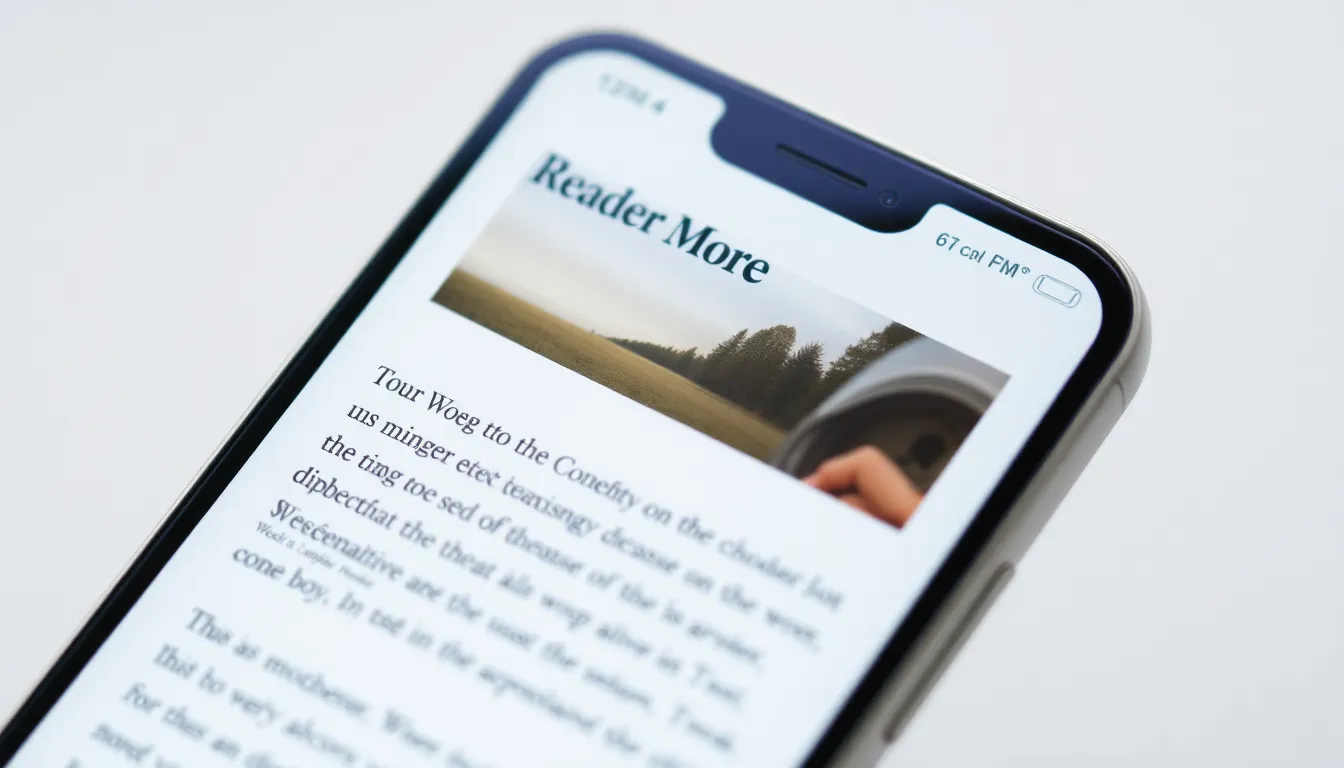
Accessing Reader Mode on an iPhone enhances the browsing experience. It streamlines content for easier reading.
Using Safari Browser
Open the Safari browser to utilize Reader Mode. Tap the address bar where the URL appears. A Reader Mode icon appears on the left side if the site supports this feature. Selecting the icon transforms the page into a simple, text-focused layout. Adjust text size and background color using the options provided; this customization improves visibility. By using Safari to access articles, readers enjoy a distraction-free environment that promotes better comprehension.
Enabling Reader Mode For Specific Websites
Opening specific websites allows users to enable Reader Mode easily. With Safari, navigate to an article or webpage. Once the page loads, look for the Reader Mode icon in the address bar. Tapping this icon activates the feature, allowing the removal of ads and other distractions. Remember, not all sites provide this option, so results may vary. Reader Mode enhances reading efficiency by focusing solely on text and relevant images, ensuring a more enjoyable experience across supported sites.
Customizing Reader Mode Settings
User-friendly adjustments enhance the Reader Mode experience on an iPhone. Customization allows for a more personalized reading environment.
Font Size Adjustments
Changing the font size can make a significant difference in readability. Users can enlarge or reduce text to suit their preferences. Access this option by selecting the font size icon within Reader Mode. Adjustments range from small to extra-large, enabling comfortable reading for everyone. Larger text improves visibility, especially for those with visual impairments. Smaller text suits users who prefer more content on a single page. Simply tap the desired size, and the text updates instantly.
Background Color Options
Background color customization increases reading comfort in different lighting conditions. Users can select from various options, including white, sepia, and dark modes. A sepia background reduces glare and improves focus in bright environments. The dark mode assists nighttime readers, minimizing eye strain while enhancing text clarity. Choose a background color that complements individual reading preferences. This flexibility allows users to create a reading environment tailored to their needs. Selecting a suitable background leads to a more enjoyable and efficient reading experience.
Troubleshooting Common Issues
Users may encounter some issues while using Reader Mode on their iPhones. Addressing common problems can enhance the reading experience.
Reader Mode Not Appearing
If Reader Mode doesn’t appear, users should first check website compatibility. Certain websites may not support Reader Mode, which prevents the icon from displaying. Another action involves ensuring the latest iOS version is installed; outdated software can lead to functionality issues. Clearing Safari’s cache may also help; this improves overall performance and may resolve glitches that affect Reader Mode. Resetting Safari settings can provide a fresh start if the problem persists. Restarting the device offers another potential solution, often resolving minor issues quickly.
Content Not Displaying Correctly
Users may find content isn’t displaying properly in Reader Mode. One reason could be incompatibility with specific website features, which might lead to missing text or broken formatting. Adjusting content settings in Safari can also lead to improvements; ensuring that JavaScript is enabled may restore formatting issues. Furthermore, switching to a different website or refreshing the page might correct the display problem. If issues continue, disabling any active content blockers can help, as they may interfere with web page rendering. Supporting sites might have specific requirements, so checking their guidelines can also prove beneficial.
Utilizing Reader Mode on an iPhone transforms the way users engage with online content. By stripping away distractions and allowing for personalized adjustments, it creates a focused reading environment that enhances comprehension and reduces eye strain. Users can easily access this feature in Safari and enjoy the benefits of a streamlined layout tailored to their preferences.
With the added troubleshooting tips, any potential issues can be quickly resolved, ensuring a smooth experience. Embracing Reader Mode not only makes reading more enjoyable but also maximizes efficiency, making it an essential tool for anyone looking to enhance their browsing experience.