Imagine you’re in the middle of an intense video call, and suddenly your iPhone decides it’s time to dim the lights like a dramatic movie scene. Frustrating, right? Auto brightness can be a sneaky little feature that thinks it knows best, but sometimes, it just gets it all wrong. If you’re tired of your screen playing peekaboo with your eyes, it’s time to take control.
Understanding Auto Brightness on iPhone
Auto brightness on iPhone automatically adjusts screen brightness based on ambient light conditions. Many users find this feature distracting, especially during crucial moments like video calls.
What Is Auto Brightness?
Auto brightness utilizes sensors to detect surrounding light levels, dynamically altering the display’s brightness for optimal visibility. Sensors read light intensity, making the screen brighter in sunlight and dimmer in dark environments. This process enhances user experience by providing sufficient screen illumination without manual adjustments.
Why Use Auto Brightness?
Using auto brightness reduces eye strain in varying lighting conditions. Convenience ranks high; users enjoy a hands-free solution to brightness changes as they move between light settings. Additionally, this feature conserves battery life by preventing excess power consumption from high screen brightness levels. Auto brightness helps maintain an optimal viewing experience while minimizing energy usage.
Steps to Turn Off Auto Brightness on iPhone
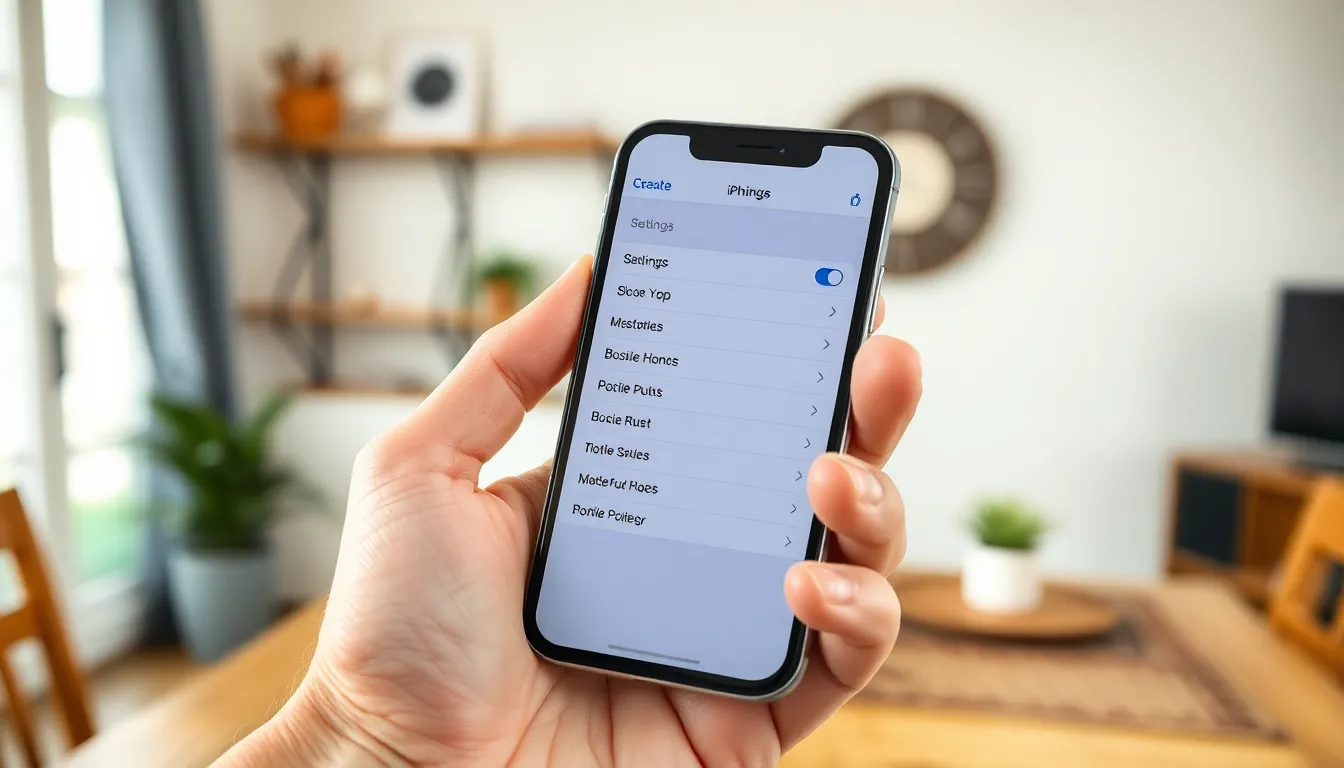
Turning off auto brightness on an iPhone allows users to customize their screen brightness for different environments. Follow these steps to adjust the settings.
Accessing Settings
To access the settings, locate the Settings app on the home screen. Tap on the app to open it. Once in Settings, scroll down to find Accessibility. Tapping Accessibility reveals several options that enhance user experience. Next, select Display & Text Size, which provides various display settings.
Disabling Auto Brightness
Within the Display & Text Size menu, look for the option labeled Auto-Brightness. Toggle the switch next to Auto-Brightness to the off position. When the setting is disabled, the screen won’t adjust automatically based on surrounding light levels. By manually controlling brightness, users can optimize their device experience for different scenarios.
Benefits of Turning Off Auto Brightness
Turning off auto brightness provides several advantages for iPhone users. Adjusting settings manually enables better control over the device’s display performance.
Improved Battery Life
Reduced screen brightness sets optimum power consumption. Users can prevent excessive battery drain by setting brightness to a lower level. Many users find that a dimmer display during low-light conditions extends battery life significantly. Statistics show that display usage may account for up to 30% of battery usage. Hence, managing brightness allows for a more efficient energy use.
Customized Display Settings
Manual brightness control caters to specific user preferences. Individuals can set brightness levels that align with personal comfort in various environments. Additionally, users may choose to increase brightness for visibility in bright outdoor settings or reduce it in dark rooms. Accessibility becomes a key factor for many users, allowing them to tailor their experience based on activities. Fine-tuning brightness settings enhances overall usability and user satisfaction.
Common Issues After Turning Off Auto Brightness
Turning off auto brightness can lead to several noticeable issues for users. Screen brightness inconsistencies may occur, resulting in an experience that feels less dynamic. Since the iPhone no longer adjusts brightness automatically, users may encounter situations where the display is either too dim or excessively bright. This manual adjustment often requires constant attention, especially in varying lighting conditions, which could diminish the user experience.
Screen Brightness Inconsistencies
Screen brightness inconsistencies become evident after disabling auto brightness. Users may notice that displays don’t adapt to ambient light changes. During moments of low light, users could find screens glaringly bright without any adjustment. Conversely, in brightly lit environments, the screen may dim too much, causing visibility issues. Such fluctuations can lead to eye strain or discomfort, particularly for extended use. Finding a consistent brightness setting that works across various conditions requires frequent manual tweaks.
Tips to Adjust Brightness Manually
Adjusting brightness manually can greatly enhance user satisfaction. Users can utilize the Control Center by swiping down from the top right corner for quick adjustments. Sliders allow precise control, enabling users to set brightness levels that feel comfortable. For deeper adjustments, navigating to Settings and then Display & Brightness provides further options, including automatic adjustments based on certain scenarios. Users should consider using Night Shift during evening hours for reduced blue light exposure, promoting better sleep. Keeping brightness consistent in different environments may be challenging, but these techniques can create a seamless experience.
Turning off auto brightness on an iPhone empowers users to take control of their screen settings. By following the simple steps outlined, individuals can customize their display to suit their preferences and environments. This manual adjustment not only enhances visibility but also optimizes battery life, allowing for a more personalized experience.
While there may be challenges in maintaining consistent brightness levels, utilizing quick access features like the Control Center can help manage these adjustments effectively. Embracing manual brightness control can lead to greater satisfaction and usability, ensuring that users enjoy their devices without interruptions or discomfort.